
Campaigns should always serve a purpose and not be too extensive.
As a rule of thumb: A campaign should fit on the screen.
For more complex Campaign, it is recommended to create sub-campaigns.
Creating campaigns
- Select “Campaigns” in the sidebar
- Click “+New” in the upper right corner
- Give your campaign a name
- Select a category for your campaign
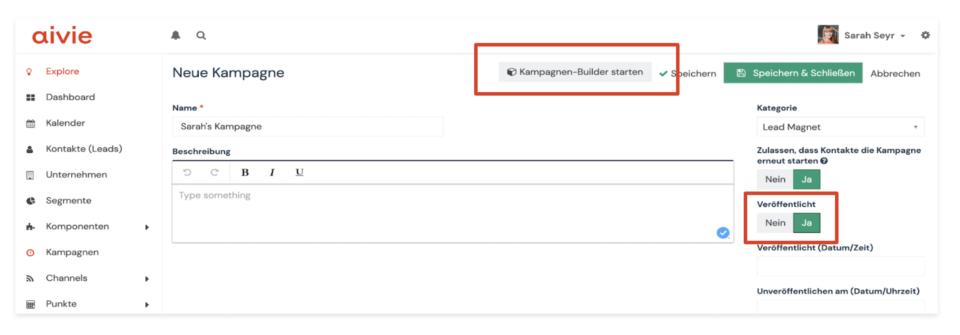
Attention, when a campaign is published, it runs.
Only activate the campaign after testing. - Start the campaign builder via the button in the upper right corner
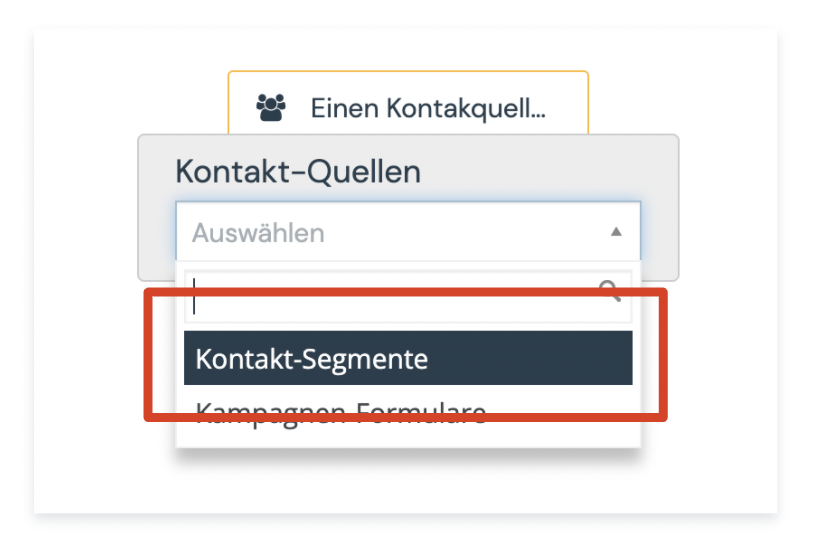
- In the campaign builder, first select your test segment. After testing the campaign with the test segment, you can adjust the segment with the correct contacts
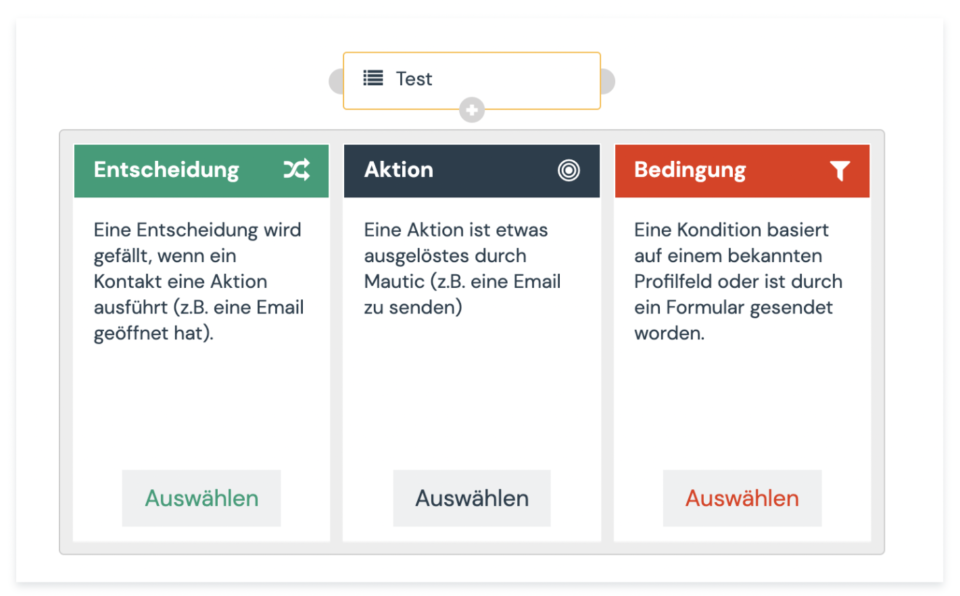
- Define individual elements of the campaign
- Action: e.g. send an e-mail
- Decision: e.g. check if a contact has clicked in the email
- Condition: e.g. make a selection of contacts according to tags (interests)
- If you want to send an email, select “Send Email” under Actions
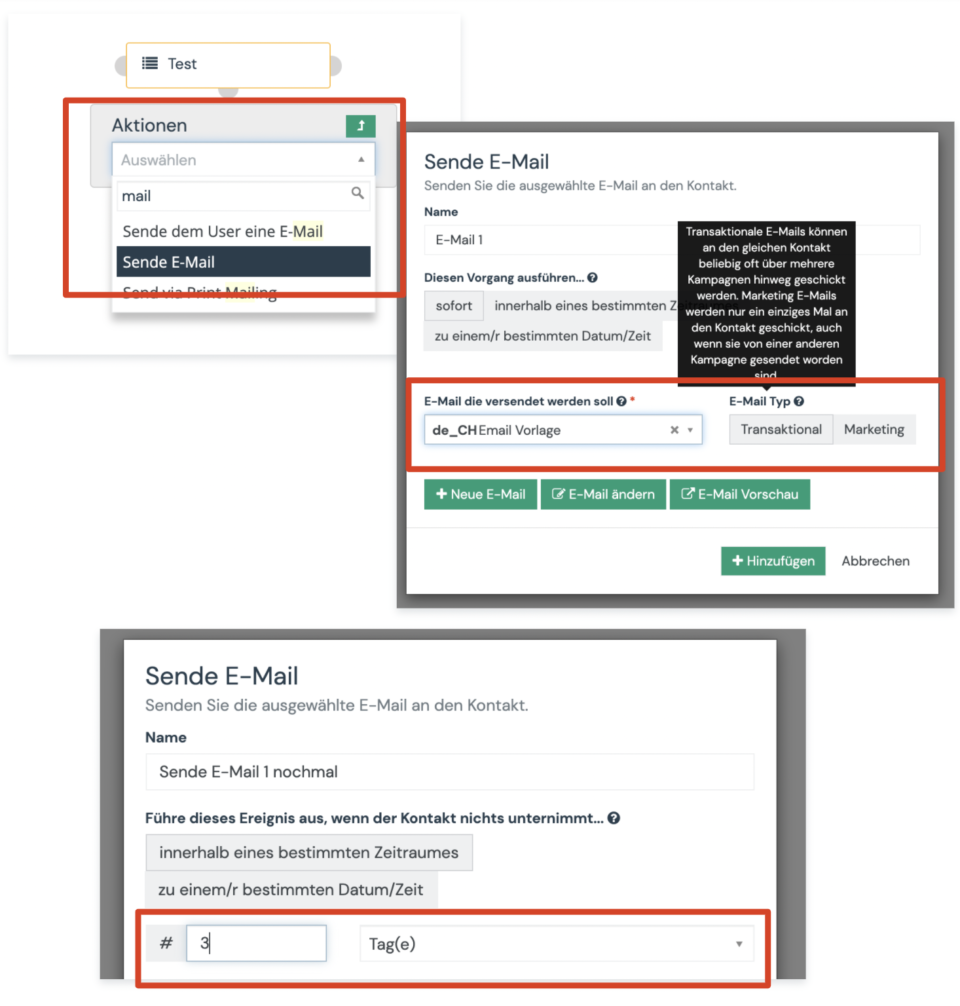
- Assign a name for better overview in the campaign
- Determine the time (immediately means as soon as someone is in the segment and the campaign is running)
- Select the email to be sent from the dropdown
- Transactional means that the email can be sent multiple times
- If you want to resend the email after a certain period of time, you can add a waiting period
- Save your campaign in the upper right corner
- Once your campaign is ready, you can test your campaign with your test segment.
- After testing, you can publish your campaign with the selected segment.
Campaign Best Practices
- Don’t do endless campaigns. Maximum 5–7 touchpoints, then send to a new campaign.
- Schedule Re-Sends. Especially if emails are not responded to, resend after a few days.
- Don’t Spam. The content presented must be clearly related to the interests of the recipients or have a designated news character.