
In Aivie, you can either schedule an email directly in the email itself or trigger it on a schedule via a campaign. For individual newsletters, scheduling in the email is usually the easiest option.
Schedule the sending of a single email
If you want to send an email at a specific time, proceed as follows:
- In Aivie, open Channels → Emails.
- Create a new email or open an existing email.
- Make sure the email is fully set up:
- Subject
- Sender
- Content
- Segment or recipient group
- Save the email.
- Publish the email or schedule the send using the desired send date.
- Select the date and time when the email should be sent.
Aivie will then send the email automatically at the scheduled time.
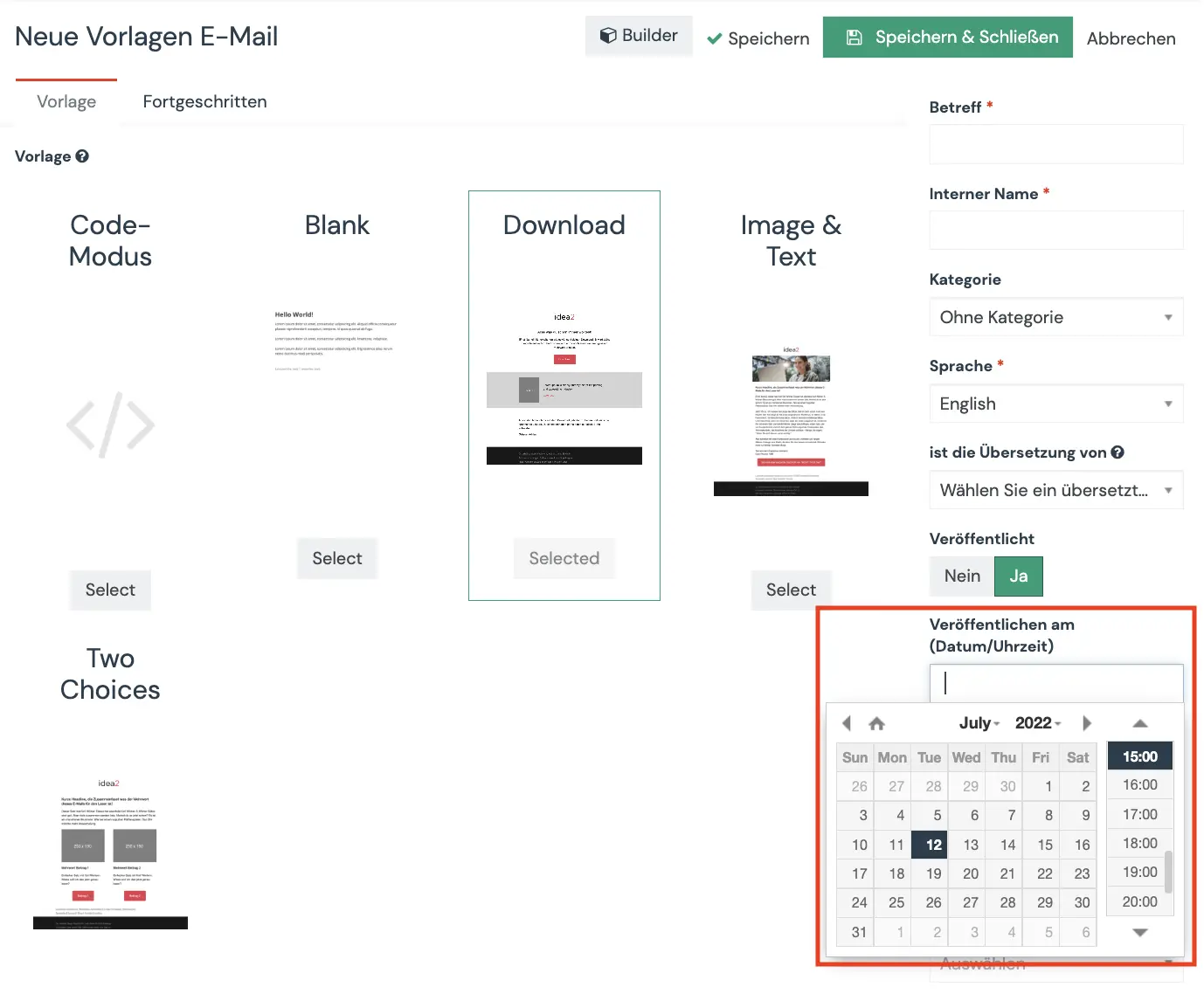
You can find more details here: How can I send an email or a newsletter within a specific time period?
Schedule sending via a campaign
If sending should be part of an automation, it’s better to plan the email via a campaign.
This makes sense if, for example, the email should be sent:
- after a sign-up
- a few days after an event
- only to specific contacts
- differently depending on conditions or date
In a campaign, you can add an Send email action and control the timing using wait times, conditions, or date-based decisions. Aivie also supports campaign logic where different emails are sent depending on the date.
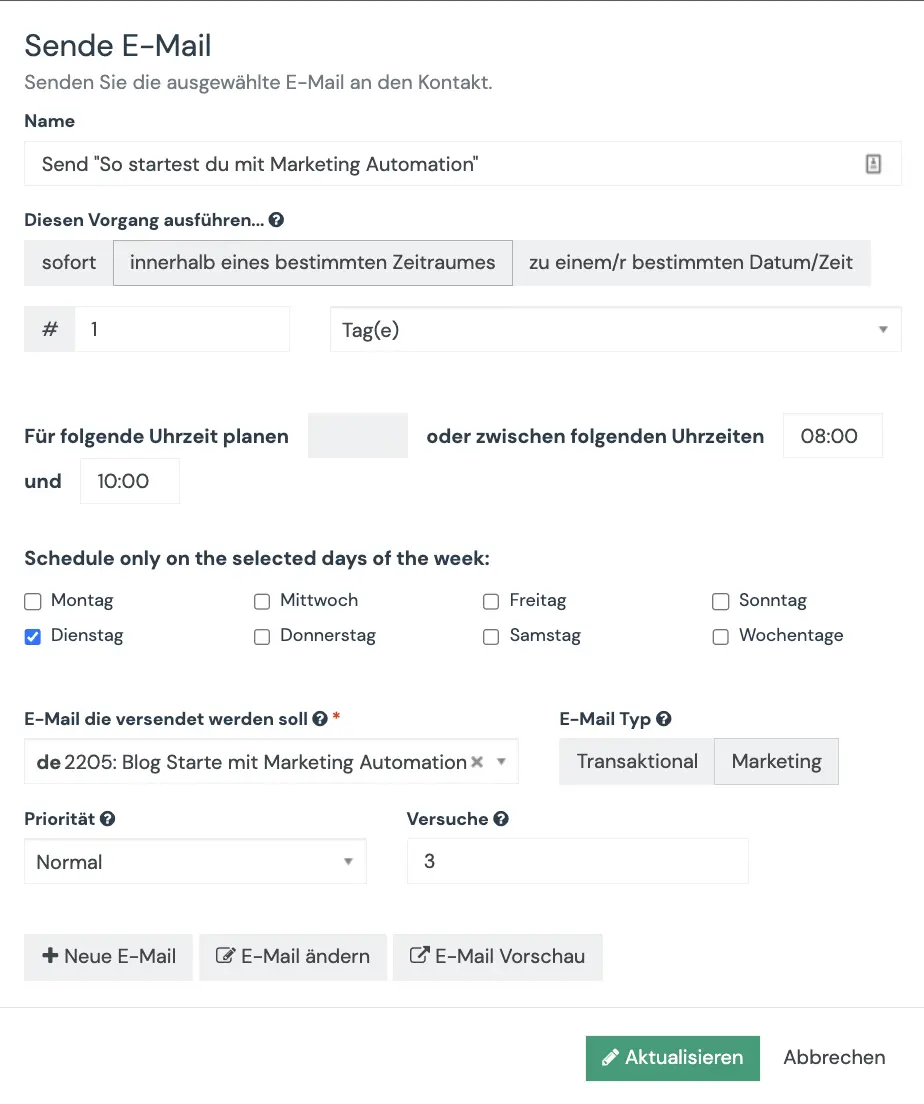
When should you use which option?
For a classic newsletter or a one-time announcement, use the email’s direct scheduling.
For automated workflows, follow-ups, reminders, or different content depending on contact behavior, use a campaign.
In short
Schedule a single email directly in the email with date and time. As soon as sending becomes part of an automation, you should control it via a campaign.