Forms are used to collect contact information, often in exchange for access to a download or an email newsletter. So, forms allow you to request various information about your users:inside. In the example we show you how to create a newsletter form.
- Go to Form in the menu under Components
- Click the «+ New» button in the top right corner
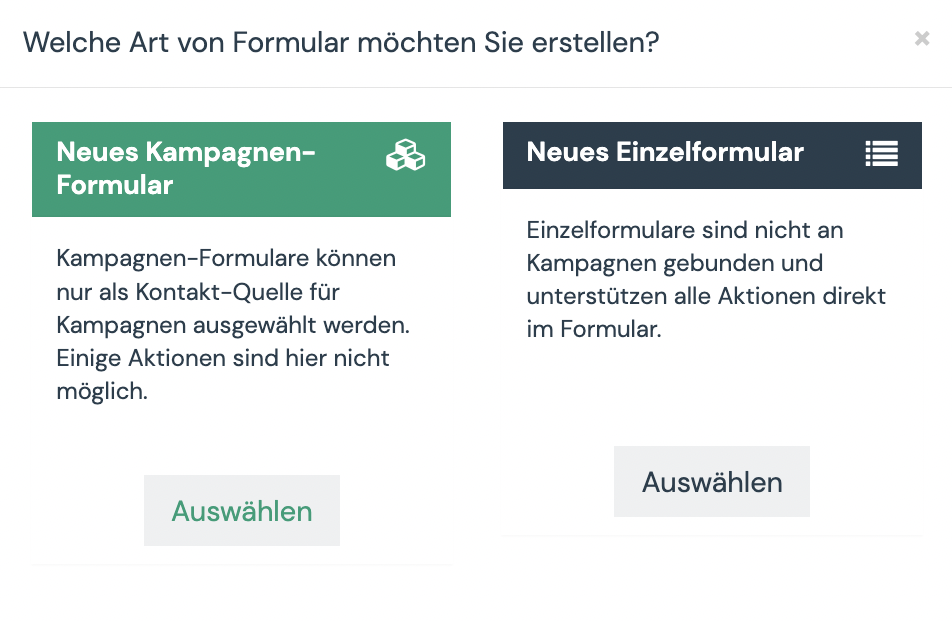
- Select the type of form you want to use.
Here you can find out when to use which type of form - Give your form a meaningful name. We recommend to combine the name with the year/month number. This way you keep the overview.
- Specify what action should happen after the form is filled out: Stay on the form or page, Redirect URL or Show text. For the text or URL, you will find the «Redirect URL/Test» field below for your entry.
- Go to the next tab «Fields» to add your fields. A form can contain as many fields as needed.
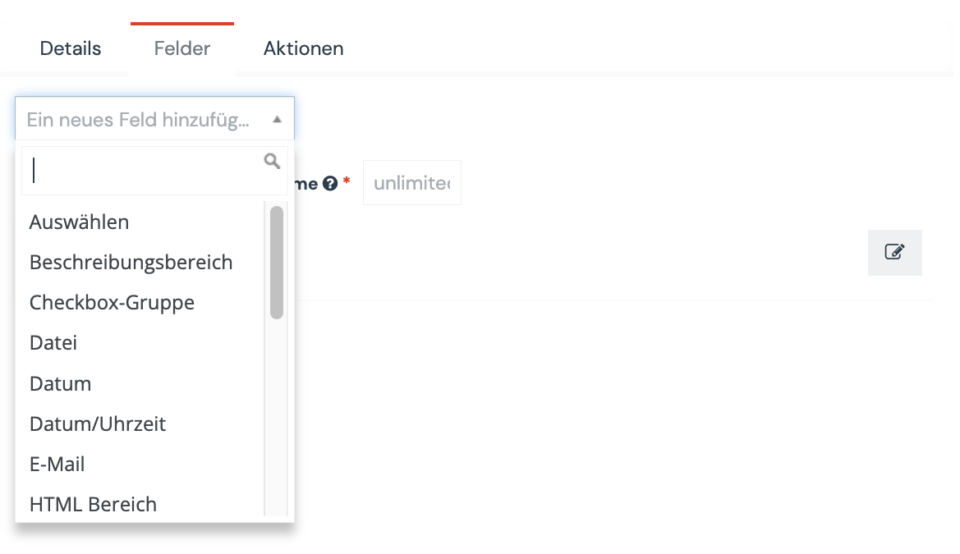
- Select your first field from the «Add a new field» drop-down menu. Example: For last name and first name the text field is used. For the email address the field Email and you have your newsletter form.
- Fill in the contents for the respective field. Under Contact field, you can link the form content to the respective contact field.
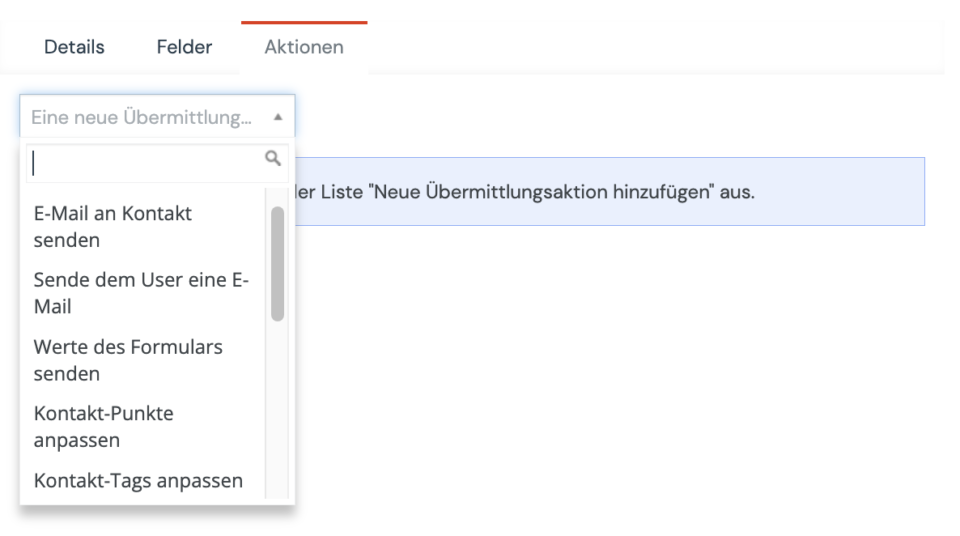
- Under the next tab Actions you can define which actions should happen automatically after filling out the form. Example: For the newsletter form, you can set a “newsletter” tag for everyone, you can have yourself/your team notified when you sign up, and you can send an email directly (e.g. email to confirm the email address).
- Then you can publish your form and then click on the «Save & Close» field.
- Now you can include the form in e.g. your landing page.

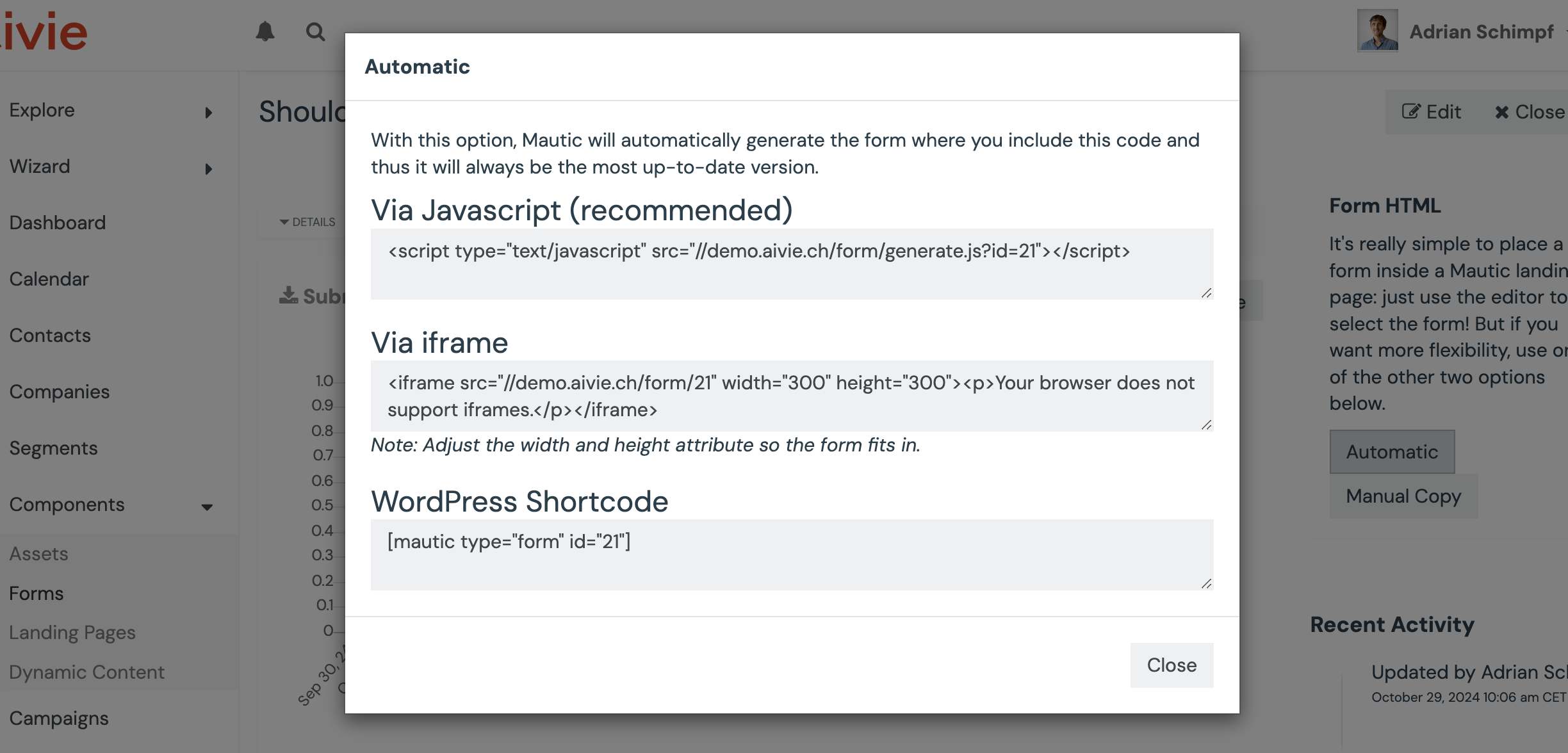
- The easiest way to embed the form into your website is via a JavaScript snippet. You can find this snippet by clicking «Automatic» on the form details page.
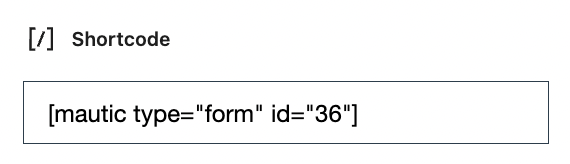
- If you then want to embed your form in WordPress, for example, it looks like this: