
Download our Excel Template and follow these steps to import your contacts.
- Prepare your contacts using our Excel Template.
- In Aivie, click on “Contacts (Leads)” in the side menu.
- Open the drop-down menu in the upper right corner and click “Import”

- In the next step, you can upload your file to import your contacts into Mautic.
For CSV: Adjust the CSV settings according to the criteria below. If you use a file with a non-standard separator or a non-standard encoding, you can still adjust the setting here.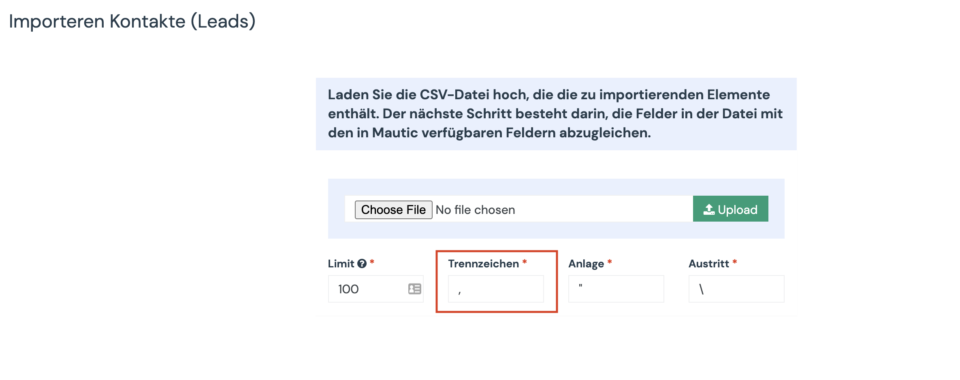
- The field mapping page should now be displayed. In the first group of options, you can select owners, segments, and tags that you want to assign globally to all imported contacts.
- The second group of options allows you to map the columns from your file to the custom fields of the contacts.
- The third group of options allows you to assign columns from your file to specific contact attributes, such as creation date, etc.
- When the field mapping is complete, click on one of the import buttons.
- Your contacts are now being imported.
Important information for importing contacts with a CSV file:
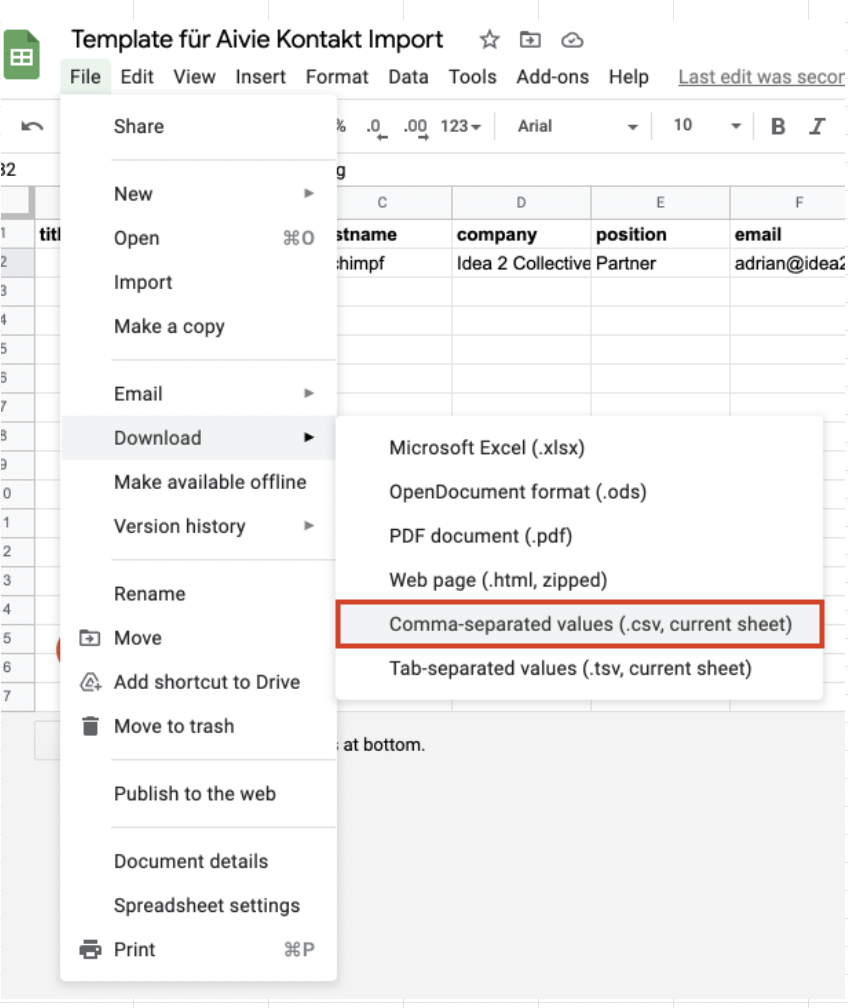
- The CSV file must be in UTF8 encoding. This is because other encodings can cause problems when importing. Google Sheets automatically encodes to UTF8, Libre/Open Office lets you choose the encoding before exporting. Save your file as a “Comma-separated values CSV file”.
- For boolean values like doNotEmail or custom boolean fields, use true, 1, on or yes as TRUE values. Anything else is considered wrong.
- Use ISO8601 notation for date/time values, i.e. YYYY-MM-DD hh:mm:ss Example: 2019-01-02 19:08:42
In the Mautic documentation you will find further information on how to import your contacts into Mautic.
And here you can find out how to build your first follow-up campaign for your contacts.