
Yes, you can: In Aivie, you can split a form into multiple pages using Page Breaks, making longer forms easier to follow.
Create a multi-page form in Aivie
Step 1: Open the form
- In Aivie, go to Components → Forms.
- Create a new form or open the desired form and click Edit.
Step 2: Split fields into meaningful sections
First, think about the structure of the form, for example:
- Page 1: Introduction + basic information
- Page 2: Detailed questions
- Page 3: Final step + confirmation
This makes longer forms much clearer and improves completion rates. A survey with lots of text is a typical example.
Step 3: Insert a page break
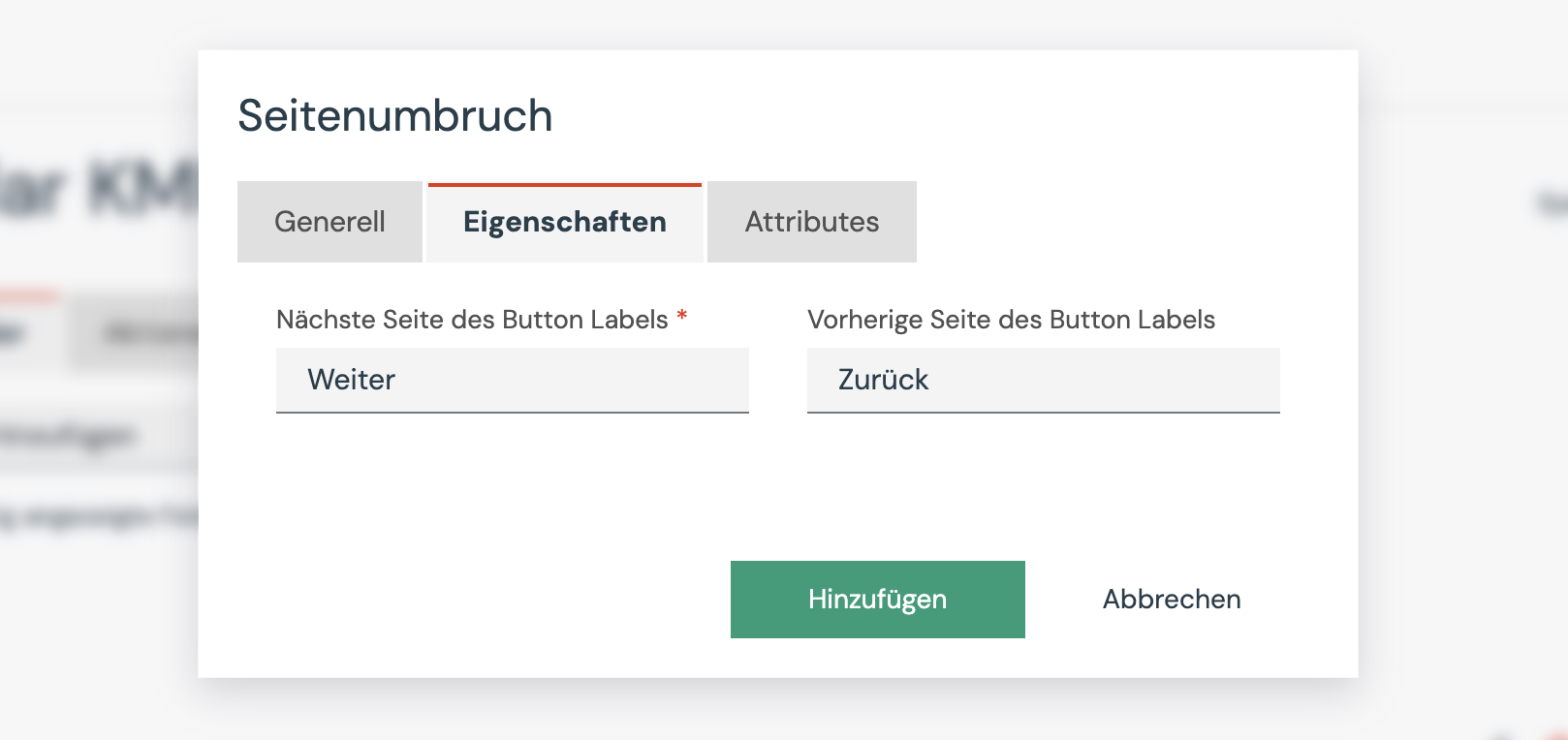
- In the form editor, select the Page break field from the fields list.
- Drag the Page break to the position where a new page should start.
- Enter a label (not displayed on the website)
- Under Properties, set the labels for the Next and Back buttons.
- If you don’t want a Back button, leave this field empty. This is relevant, for example, for the first button in the form.
- Repeat this step until all desired pages are separated.
Step 5: Test and publish
- Test the form in Preview and click through all pages.
- Then, add it to a landing page as usual or integrate it into your website via embed code.
Summary
With the Page break field, you can structure forms in Aivie across multiple pages. This makes longer forms clearer and improves the user experience. The form is only submitted on the last page.