Here you can learn how to link Aivie with cal.com. How to create a cal.com profile to use your cal.com appointment link in your automated emails in Aivie.
Create a Cal.com profile
Create your profile on cal.com and set it up with your calendar. You can find more information in the cal.com documentation.
Activate Cal.com on Aivie
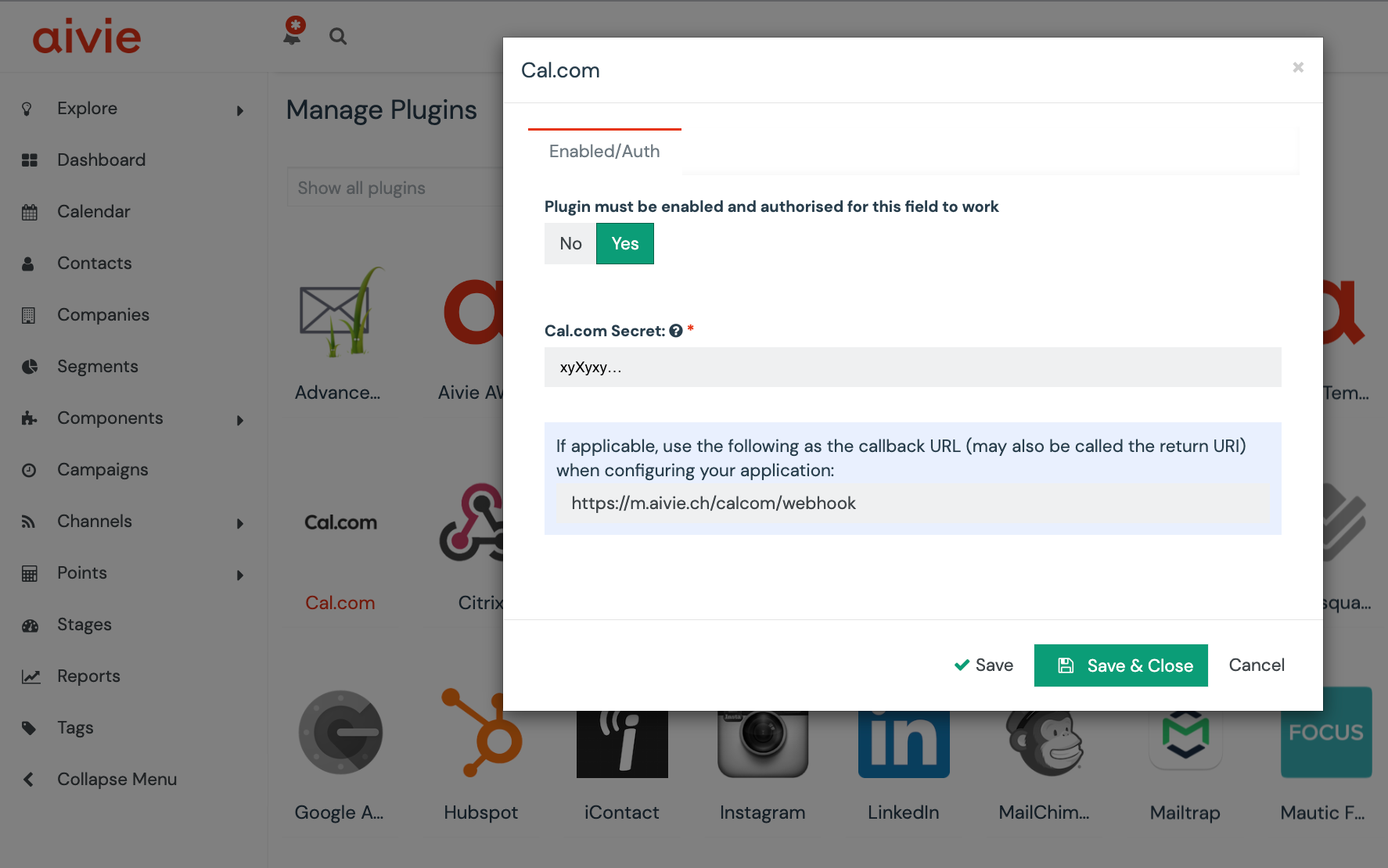
- Activate the Aivie Cal.com plugin under Settings > Plugins.
- Click on the Cal.com plugin to open it
- Click Yes on published to activate the plugin.
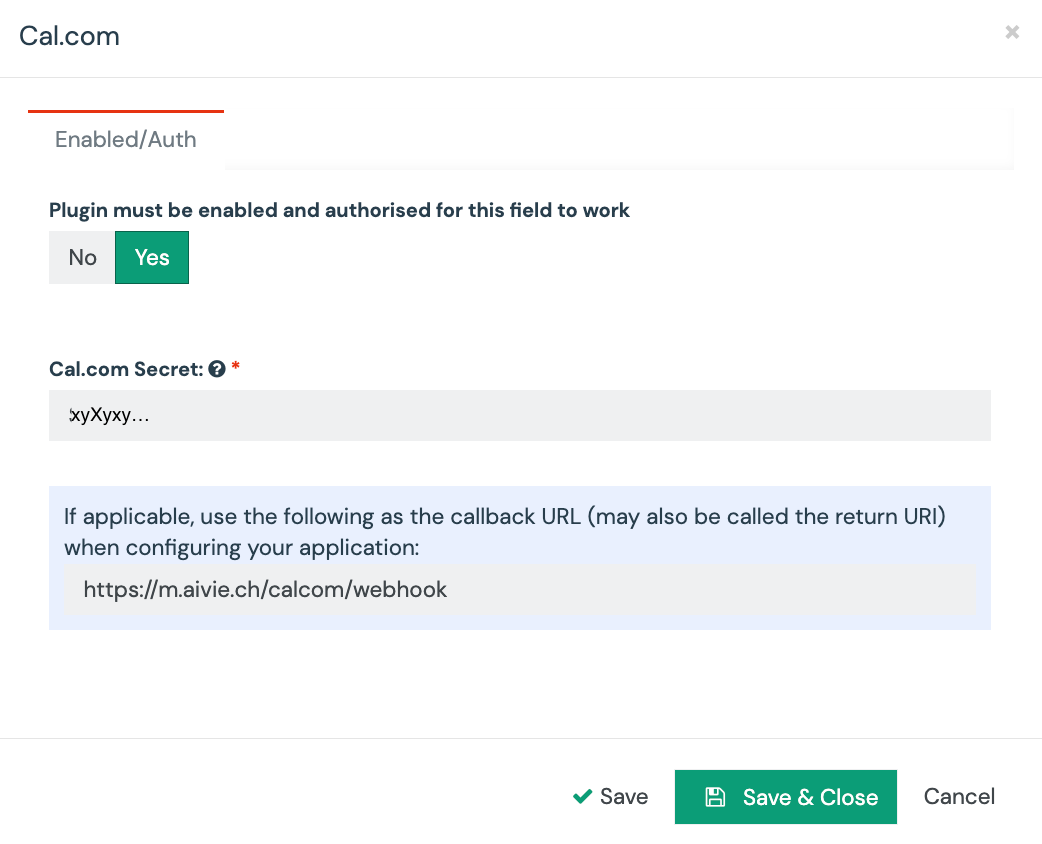
- Click Save
- Once the plugin is activated, you can transfer the webhook URL and the Cal.com Secret to cal.com. To do this, open a new tab.
Setting up Aivie on Cal.com
- Go to your account settings on cal.com
- Create a new webhook. You can find this on Cal.com under Settings > Webhook > New Webhook
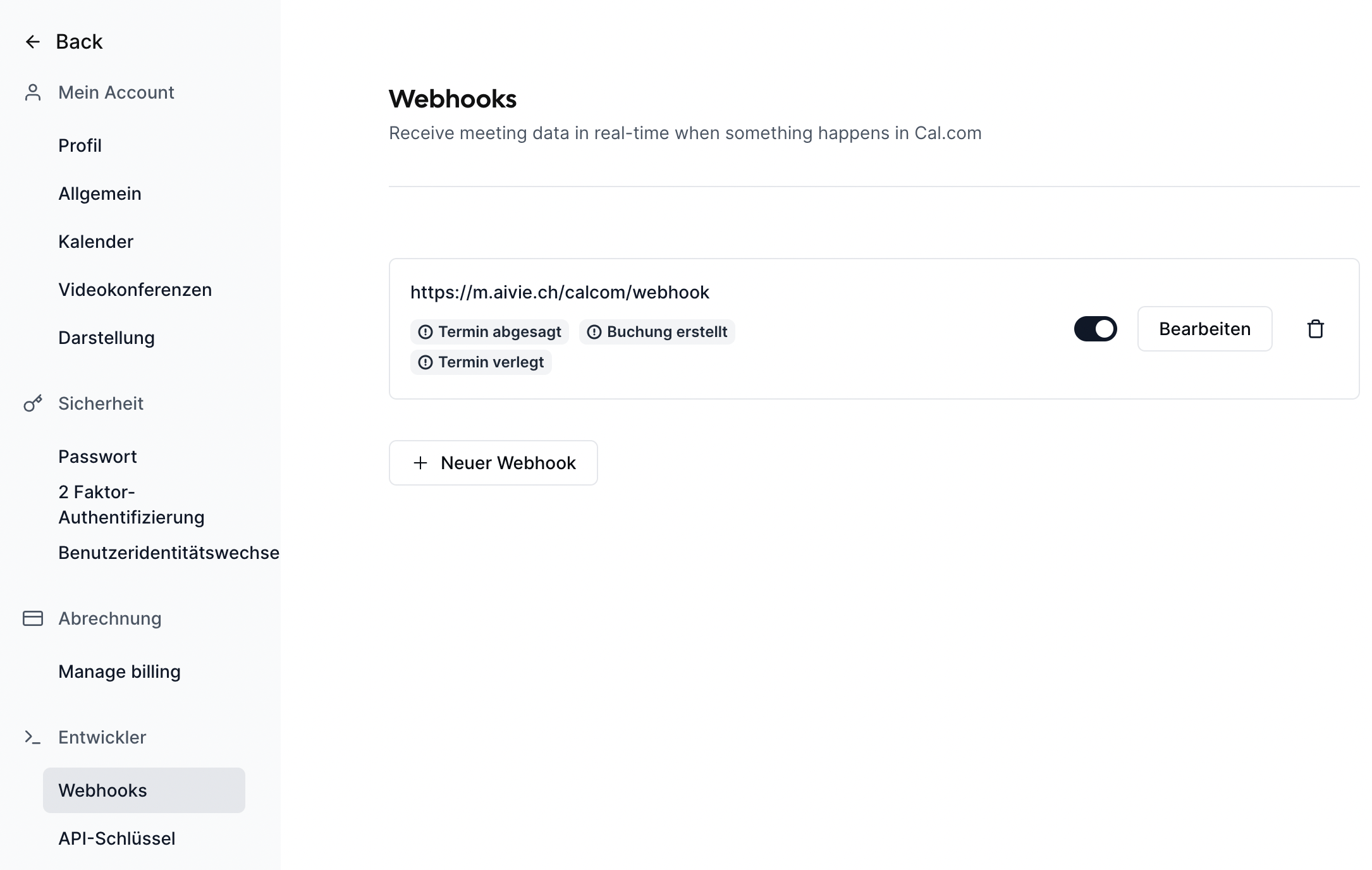
- Enter your values from the Aivie Cal.com plugin.
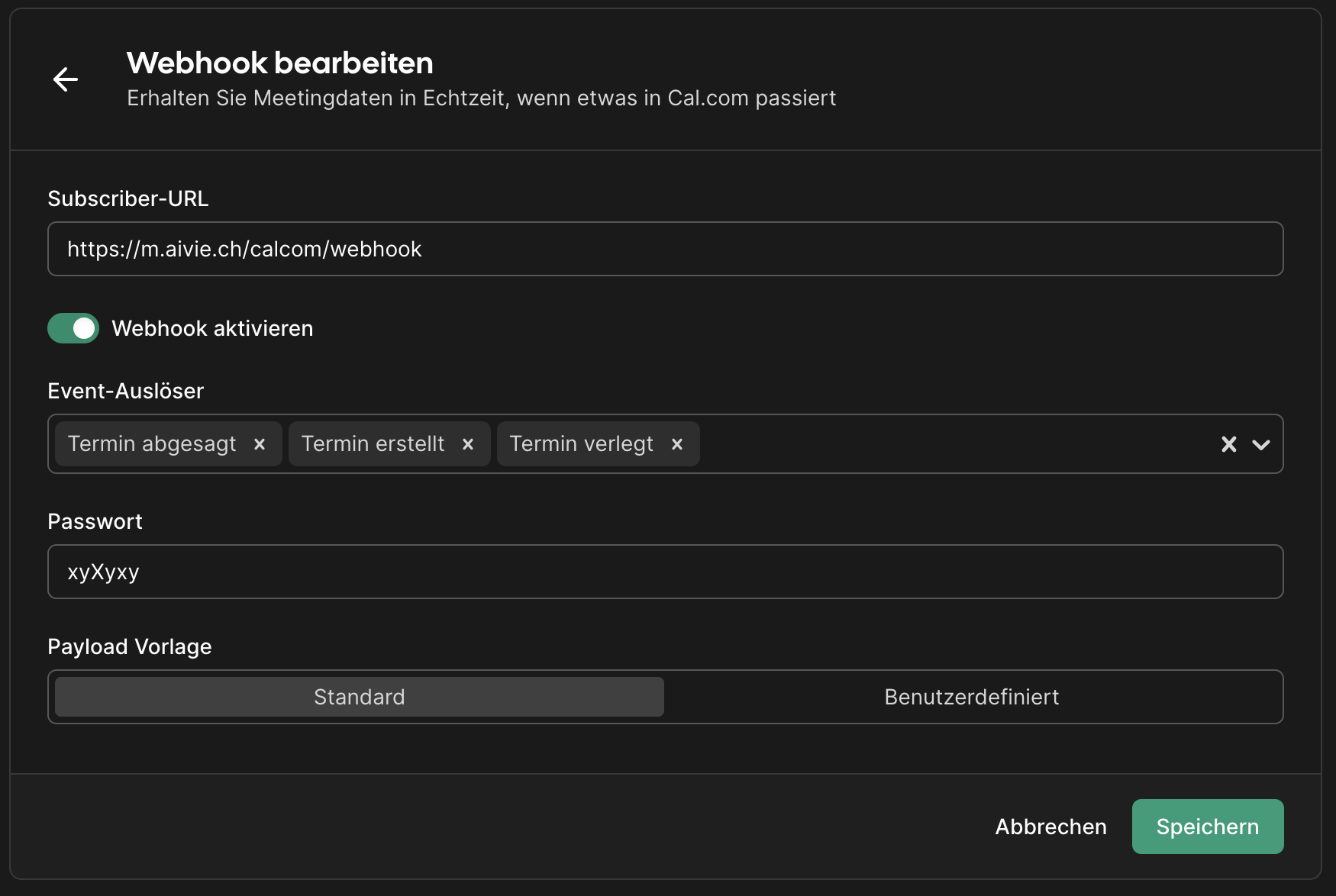
- Click Save & Close
Now you can insert your appointment URL into your website or emails, and your leads can book an individual appointment directly via the link. New contacts are automatically created in Aivie.
Embedding your Cal.com link in emails
- Create an email
- Add your Cal.com meeting date as a link
- When your customers book an appointment, the customer and you receive a confirmation email
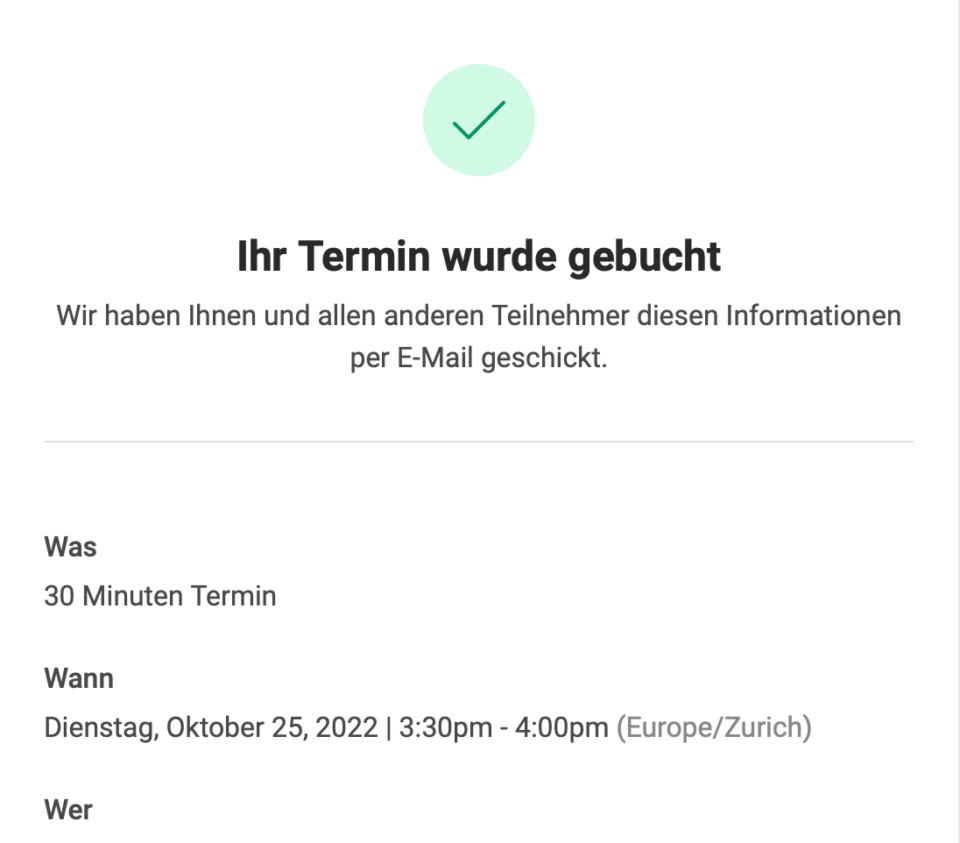
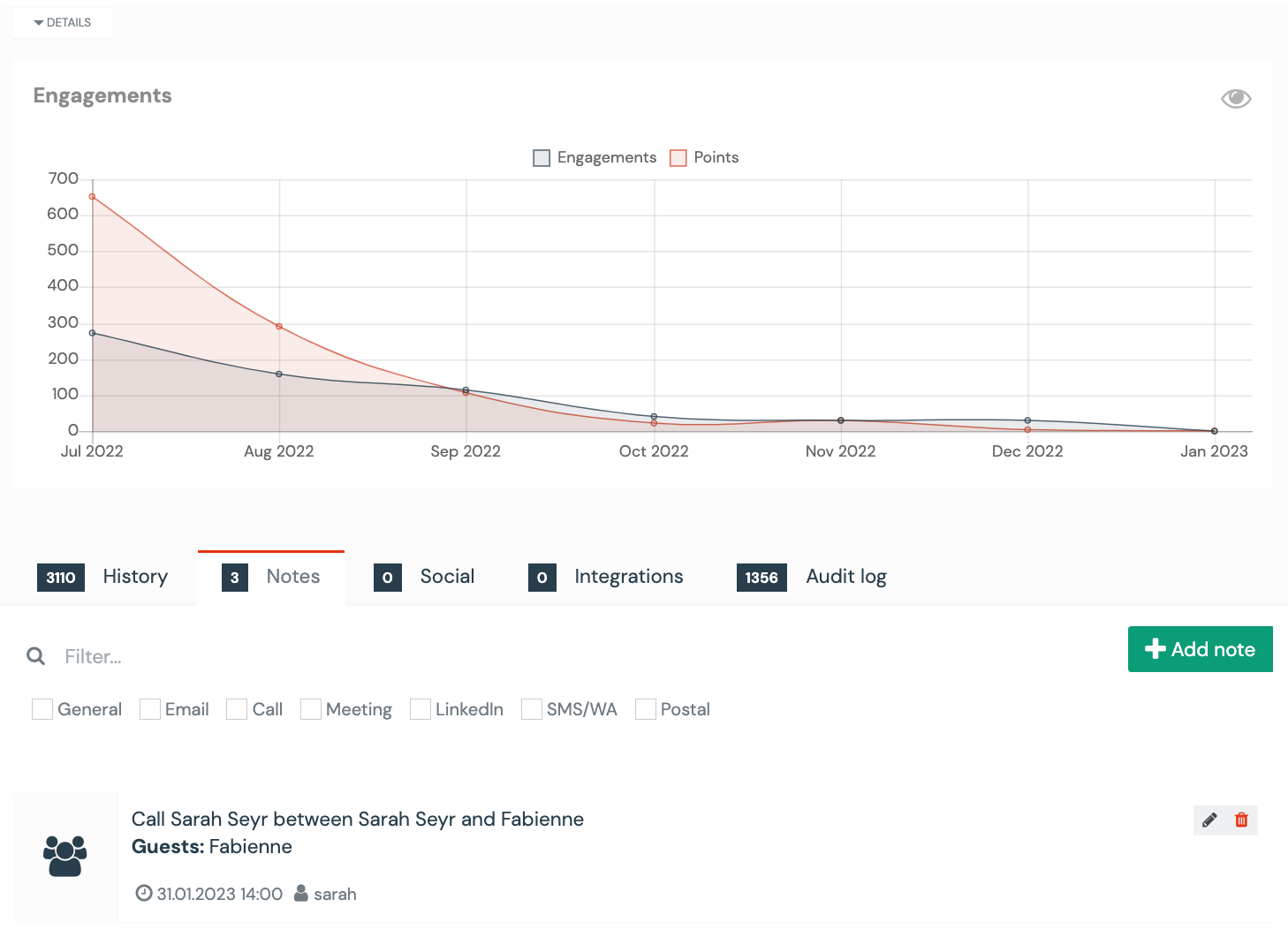
- In Aivie, an entry with the date of the appointment is automatically added to the contact under Notes