
When jumping within a campaign, the wait time of the jump and the wait time of the target event are applied one after the other. If the jump waits 5 days and the target event waits another 65 days, the target event will only be executed again after around 70 days.
Continue reading “How are wait times added when jumping within a campaign?”Campaign
An empty “No” path causes the contact to get stuck in the campaign.
Aivie does not check the condition again – so the contact will never be moved on.
Therefore, always add an action such as “Remove from campaign” at the end to ensure clean processes.
Create a segment with the «Visited any URL (date) equals today» filter. It recognizes new visits and then automatically starts the campaign.
Continue reading “How can I automatically send emails after a contact visits a website?”With Aivie, you can differentiate contacts directly in the campaign according to their Last Active Date and thus send active and inactive contacts different emails.
Continue reading “How can I send different emails in a campaign depending on the date?”You can set relative date filters in the campaigns or in the segments.
Continue reading “How can I check whether a date has expired?”In Aivie, you can either schedule an email directly in the email itself or trigger it on a schedule via a campaign. For individual newsletters, scheduling in the email is usually the easiest option.
Continue reading “How do I schedule the sending of an email?”Marketing automation campaigns in Aivie can be divided into three types:
Continue reading “What are the Campaign?”Before you can create the campaign, you need to have all the linked elements ready, such as forms, segments, or assets.
The Campaignprovides a blank canvas on which you can build your Campaign. The functions include conditions, decisions and actions. You create your workflow by selecting different decisions, actions, and conditions, or simply dragging and dropping them onto the canvas.
- Click onCampaignStartCampaign”.
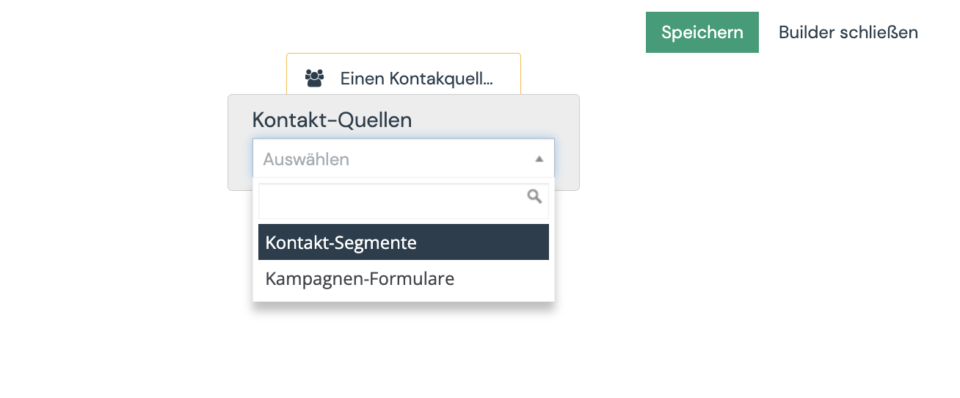
- Specify from which source the contacts for the Campaign should be taken. Campaigncan be triggered by contacts that are a segment and/or forms that have been submitted.
- Contact Segments: Select this option if you want to send your Campaign to a specific group of contacts who share certain attributes, such as “Based in the US” or “Visited Product A site.”
Note that the segment selection only shows public segments. So if you don’t find a segment in the list, please check in the segment if it is also published. - Contact forms: Select this option if you want to start the Campaign when the contact fills out a specific form. Forms are the primary point for collecting information about a contact. This information can then be used to perform a series of actions in a Campaign.
- Contact Segments: Select this option if you want to send your Campaign to a specific group of contacts who share certain attributes, such as “Based in the US” or “Visited Product A site.”
- Click the plus in the gray circle to add at least one event to your Campaign.
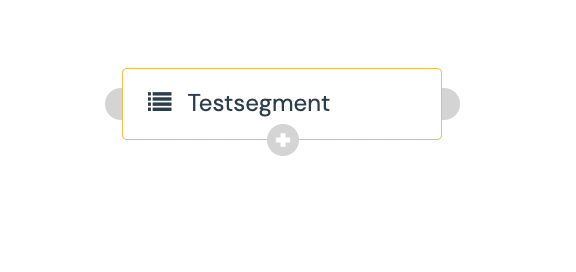
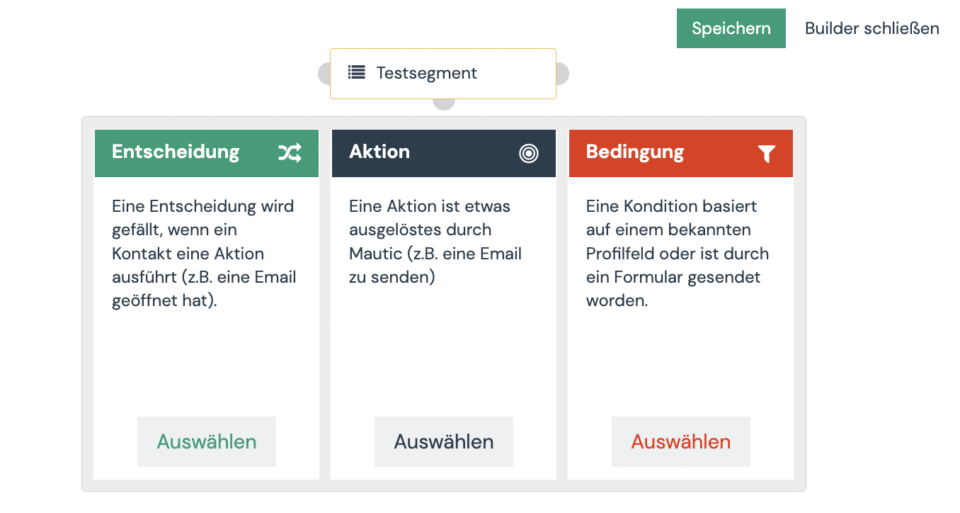
An event consists of individual actions, decisions and/or conditions, or a combination thereof. If this logic is new to you, then you can learn more about the individual events in the Mautic documentation.
Specific values can be stored in the campaign in combination with the action in the form settings via “Sends the content of the form”. These can then be checked in the campaign with the Form Field Value condition.
Continue reading “In a campaign, can I check which answer a contact has given via a form?”
A selected contact or all contacts can go through the campaign again.
This is best solved in 2 steps. Otherwise you will get the error message: “Contact removed from campaign”.
Continue reading “How can I remove a contact from a segment in a campaign”
This function is great for e.g. webinar, end of subscription, or birthday:
This works best if you link emails and select English as the default/parent language.
Continue reading “How do I send a Campaignemail in the contact’s language?”
Campaigns should always serve a purpose and not be too extensive.
As a rule of thumb: A campaign should fit on the screen.
Continue reading “What is important when setting up a campaign?”