
Before you can create the campaign, you need to have all the linked elements ready, such as forms, segments, or assets.
To start creating your campaign, you should have completed the following steps:
- Consider what type of campaign type you want to create.
- Create a contact segment or a form to initialize your campaign. If you are already using an existing segment or form, make sure they are up to date.
- Create all the custom fields you need for your contact profile.
- Set up appropriate channels such as text messages, emails, and focus items to communicate with your contacts.
- Create assets, landing pages, or other components that you want to use for your campaign. If you use assets, make sure you have uploaded them before starting the campaign.
- Although you can set up channels and create components (assets, emails, etc.) while creating the campaign, it is ideal to prepare them in advance, as this will make the campaign creation process faster and more efficient for you.
Once all components and settings are prepared, you can start creating your first campaign:
- Click Campaignin the left navigation menu.
- Click on “+ New” in the upper right corner. The new campaign wizard will appear.
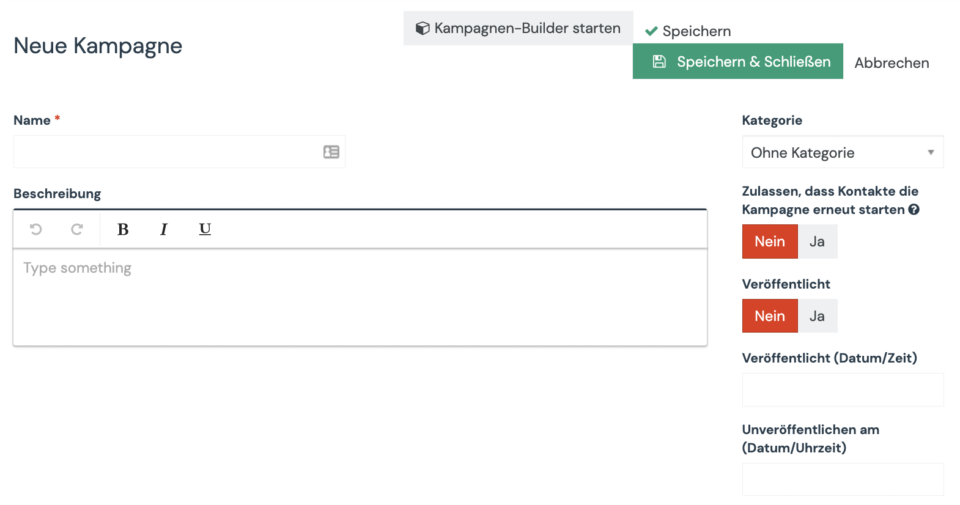
- Enter a name and a short description for your campaign. Optionally, you can specify the following settings:
- Category. Categories help you organize your Campaign. At the very bottom of the dropdown, you can create new categories.
- Allow contacts to restart the campaign. Activating this option allows contacts to go through the same campaign multiple times. This is particularly useful if you want to create a campaign for recurring messages (e.g. birthdays, subscriptions) or transaction processes (e.g. activity notifications, data updates).
- Published. Click the toggle to publish or not publish the Campaign. Make sure you don’t publish a Campaign until it’s actually ready and tested. You can publish a Campaign at a later time or unpublish it by setting a time and date.
- Click “Start Campaign Builder” to begin creating the campaign workflow, and add at least one event to save it.
- After you have added events to your campaign, close the Campaign Builder and click Save & Close to save your changes.